Sample Save As Screen
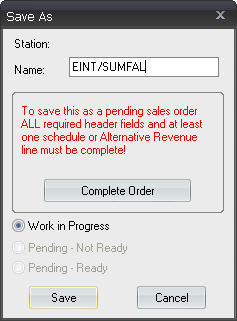
An incomplete sales order is missing vital scheduling information. At the bare minimum, an incomplete sales order must have starting and ending dates specified for all schedule lines.
To save an incomplete order:
Incomplete sales orders can only be saved with a status of Work in Progress. This is the reason the status area of the dialog box is grayed out. The order will appear on the Sales Order Details tab of Document Manager, and the status column will show Work in Progress.
 NOTE - For more information on using Document Manager, see Interaction with Document Manager.
If you want to save the order as pending, you must first complete the header and at least one schedule line or alternative revenue item. If your header is currently incomplete, you can click the Complete Header button to open the header. If you do not have at least one completed schedule line, or if you have one or more incomplete schedule lines on the order, you can click the Complete Schedule Line button to return the cursor to the first incomplete schedule line.
NOTE - You cannot save incomplete alternative revenue orders. Before any alternative revenue order can be saved into the database, it must contain a completed header and at least one completed alternative revenue line.
NOTE - When naming an order, the sales order name cannot end with a dash-number combination (e.g., coke-3). This is because the system adds a dash-number combination to the end of an order when you save a revision. See Revising, Deleting, and Canceling Spot Orders for more information.
NOTE - When naming an order, Marketron recommends naming it something that will be easily recognizable after the order is grouped with all other orders in Document Manager. In most cases, this means using some kind of client/month/product combination. This will be especially helpful if you have multiple active orders for the same client. For example, "Burger King/June/Whopper" will be easily recognizable later when reviewing all Burger King orders.