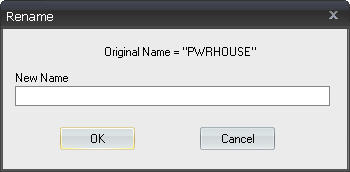
To rename an order, right-click on the order and select Rename or select the order in the Order List and click the Rename Order button. In the Rename dialog box, type in the revised name for the order and click OK.
 NOTE - If you
rename an unscheduled contract revision, the contract revision’s new name will inherit the revision number attached to the previous name. In addition, when the unscheduled contract revision is converted to contract, the new scheduled version will inherit the revised name.
NOTE - If you
rename an unscheduled contract revision, the contract revision’s new name will inherit the revision number attached to the previous name. In addition, when the unscheduled contract revision is converted to contract, the new scheduled version will inherit the revised name.
For example: Assume that an existing scheduled contract is named Coke. A user revises this order; the unscheduled contract revision is named Coke-01. While the unscheduled contract revision is in the Sales Order Details tab, the user renames Coke-01 as Coca-Cola. After doing this, the system automatically appends the associated revision number to the revised name, which makes the new name Coca-Cola-01. When the unscheduled contract revision named Coca-Cola-01 is converted to contract, it merges with the originally scheduled contract (Coke), and the scheduled contract inherits the name Coca-Cola-01. The contract named Coke no longer exists.