Printing
In Document Manager, clicking the Print button will open the Print Options window that allows for the following selections:
Sample Print Options Screen
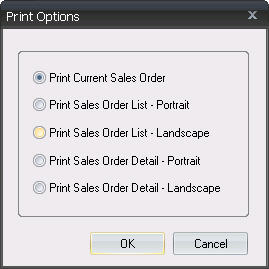
- A complete proposal, sales order or notification
- The entire proposal, sales order, contract, or notification list as seen in Document Manager
- The summary details of a selected proposal, sales order or contract.
Print a Complete Proposal
To print a complete proposal:
- On the Proposal Details tab, click once on the order.
- Click the Print button. The Print Options dialog box appears.
- Choose Print Current Proposal.
- Click OK. The order will open in Proposal, and your computer's Print dialog box will appear.
Print Entire Proposal List
To print the entire proposal list as seen in Document Manager:
- On the Proposal Details tab, click the Print button. The Print Options dialog box appears.
- Choose Print Proposal List-Portrait or Print Proposal List-Landscape.
- Click OK.
Print Only Details of Selected Proposal
To print only the details of a selected proposal:
- On the Proposal Details tab, click once on the order.
- Click the Print button. The Print Options dialog box appears.
- Choose Print Proposal Detail-Portrait or Print Proposal Detail-Landscape.
- Click OK.
Print Complete Sales Order
To print a complete sales order:
- On the Sales Order Details tab, click once on the order.
- Click the Print button. The Print Options dialog box appears.
- Choose Print Current Sales Order.
- Click OK. The order will open in Sales Order, and your computer's Print dialog box will appear.
Print Entire Sales Order or Contract List
To print the entire sales order or contract list as seen in Document Manager:
- On the Sales Order Details tab or Contract Details tab, click the Print button. The Print Options dialog box appears.
- Choose Print Sales Order List-Portrait or Print Sales Order List-Landscape.
- Click OK.
Print Only Summary Details of Selected Order/Contract
To print only the summary details of a selected sales order or contract:
- On the Sales Order Details tab or Contract Details tab, click once on the order.
- Click the Print button. The Print Options dialog box appears.
- Choose Print Sales Order Detail-Portrait or Print Sales Order Detail-Landscape.
- Click OK.
Print a Notification
To print a notification:
- On the Notifications tab, click once on the notification.
- Click the Print button. The Print Options dialog box appears.
- Choose Print Current Notification.
- Click OK. Your computer's Print dialog box will appear.
Print Entire Notification
To print the entire notification list as seen in Document Manager:
- On the Notifications tab, click the Print button. The Print Options dialog box appears.
- Choose Print Notification List-Portrait or Print Notification List-Landscape.
- Click OK.