 NOTE -
E-mail and/or Document Manager notifications must be set up for each user. This
is done in Setup Editor.
NOTE -
E-mail and/or Document Manager notifications must be set up for each user. This
is done in Setup Editor.Document Manager’s Notifications tab is used to view any missing copy, bumped spot, and missed-unresolved spot notifications that have been sent to a user.
NOTE -
E-mail and/or Document Manager notifications must be set up for each user. This
is done in Setup Editor.
When you click on the Notifications tab, notifications will be displayed in the center section of the screen. The following notifications can appear:
To view the details of the notification, click once on the notification. The details will be shown in the bottom portion of the screen.
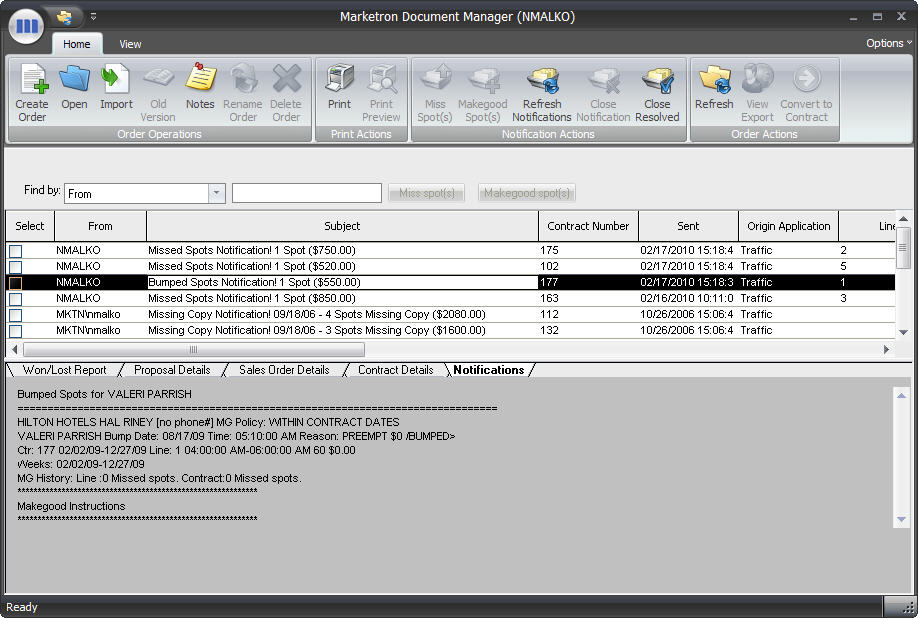
If you are having problems locating a specific notification, you can perform a search using the Find By dropdown.
To search for a notification:
A missing copy notification alerts you about a spot or spots that do not have copy assigned to them. To view the details of the notification, click the notification line. The spot’s contract number, schedule line information, and other information will be displayed at the bottom of the screen. If you need to open the sales order tied to the selected missing copy notification, click the Open in Sales Order button on the Document Manager toolbar. After reviewing the details of the notification, you can forward the appropriate copy to the Traffic Department or inform them how to otherwise resolve the issue.
After you have resolved the missing copy notification, you can remove the notification by selecting the notification and then clicking Close Notification button on the Home toolbar.
A bumped spot notification alerts you about a spot or spots that are currently bumped in Traffic. To view the details of the notification, click the notification line. The spot’s contract number, schedule line information, and other information will be displayed at the bottom of the screen. If you need to open the sales order tied to the selected bumped spot notification, click the Open in Sales Order button on the Document Manager toolbar. After reviewing the details of the notification and possibly contacting Traffic, you can decide how to avoid or accommodate a makegood situation.
After you have resolved the bumped spot notification, you can remove the notification by selecting the notification and then clicking the Close Notification button on the Home toolbar. You can also select the notification and click the Close Resolved button, but keep in mind that this will close all notifications with the statuses of Bumped, Missed w/MG, and Missed no MG.
A missed-unresolved spot notification alerts you about a spot or spots that will not run and need to be made good or missed without makegood. In the status line, these notifications will display “Missed Unresolved”. To view the details of the notification, click the notification line. The spot’s contract number, schedule line information, and other information will be displayed at the bottom of the screen. If you need to open the sales order associated with the selected missed-unresolved spot notification, click the Open in Sales Order button on the Document Manager toolbar.
If you have the proper system permissions, you create a makegood yourself or mark the spot(s) as missed without makegood.
NOTE -
See Makegoods and Misses for information on performing these procedures. Otherwise, you will need to inform the Traffic staff what to do about the spots.
After you have resolved the missed-unresolved notification, you can remove the notification by selecting the notification and then clicking Close Notification button on the Home toolbar.
Missed-made good and missed-not made good notifications alert you about spots that have been made good or missed and not made good by the Traffic Department. In the status line, these notifications will display “Missed w/MG” or “Missed no MG”. To view the details of the notification, click the notification line. The spot’s contract number, schedule line information, and other information will be displayed at the bottom of the screen. If you need to open the sales order tied to the selected bumped spot notification, click the Open in Sales Order button on the Document Manager toolbar.
After you have resolved the notification, you can remove it by selecting the notification and then clicking the Close Notification button on the Home toolbar. You can also select the notification and click the Close Resolved button, but keep in mind that this will close all notifications with the statuses of Bumped, Missed w/MG, and Missed no MG.
NOTE -
If you make a spot good or miss a spot without a makegood from within the Sales Order module, be aware that the notification’s status column will change to "Missed w/MG” or “Missed no MG”.