
Citrix Workspace app for PC
- Compatible with Windows 11 and 10

Marketron’s hosted products and services require the Citrix Workspace app to be installed on workstations. These instructions detail how to install Citrix Workspace on your workstation(s).

Need an older version? See older versions.
Once the download is complete, open the installation wizard by clicking on the CitrixWorkspaceApp file in your browser’s Downloads area or in your computer’s file explorer.
You must be logged in as the administrator or have administrator rights on the workstation to install Citrix Workspace on your workstation.
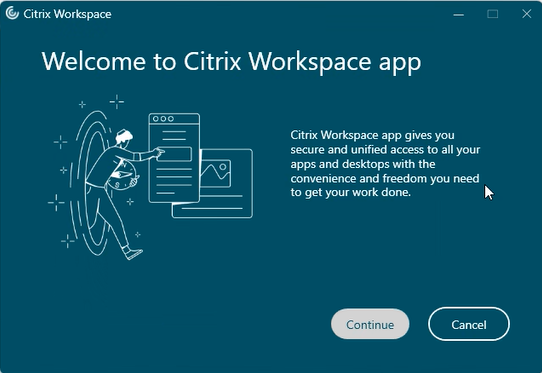
Once the Citrix Workspace installation wizard opens, click “Continue” to begin the installation process.
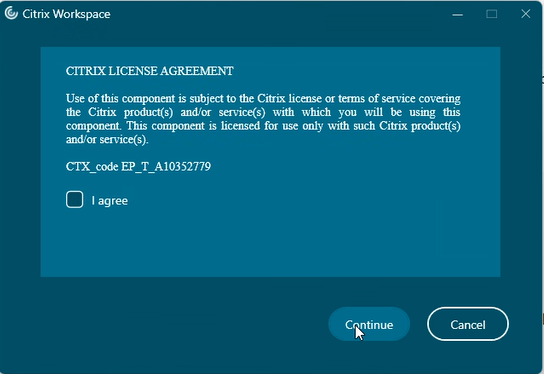
Accept the Citrix License Agreement by checking the box next to “I agree,” and click the “Continue” button.
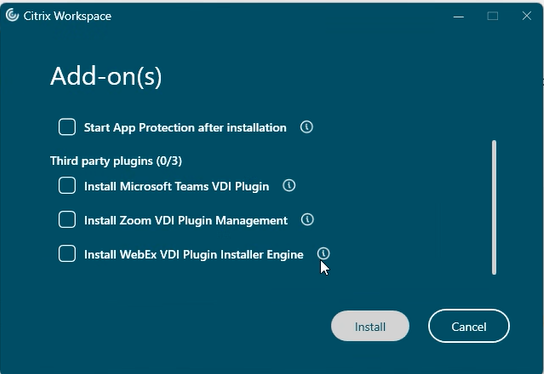
Leave all checkboxes for Add-ons unchecked and click the “Install” button.
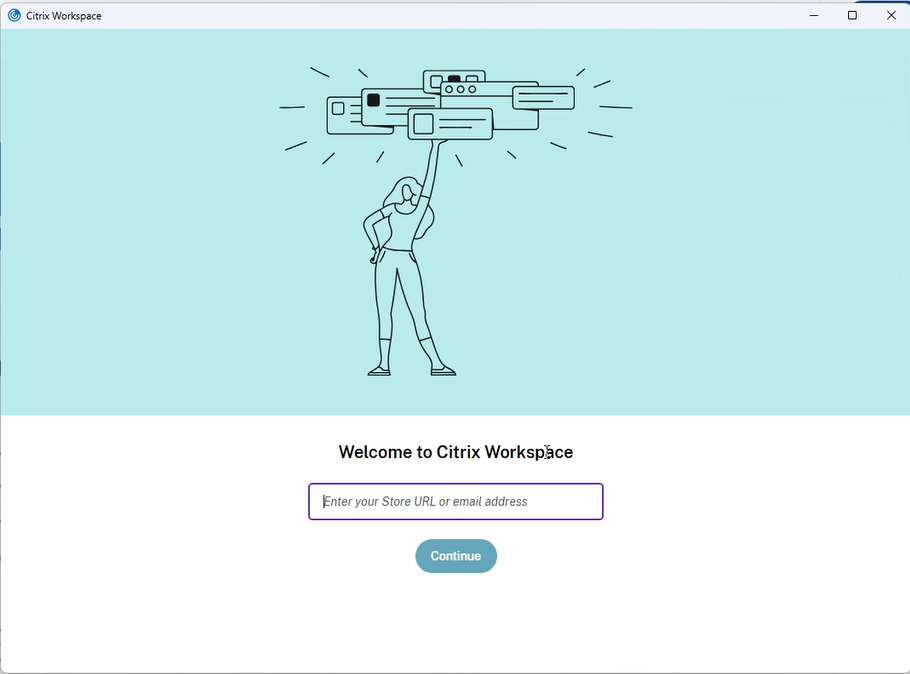
Once Citrix Workspace is successfully installed on your workstation, simply close the Citrix Workspace dialog by clicking the “X” in the upper-right corner.
Marketron has established an account for you. Do not enter a URL or email address.
Call (888) 239-8878 or email help@marketron.com.