
 PayNow feature tour
Managing collections is easier than ever for salespeople in the Traffic Portal
AEs now have convenient access to outstanding balances for their accounts directly in the PayNow Traffic Portal, supporting accounts receivable and collections management. Scroll down to see the features and how they work.

Screen 1 of 6
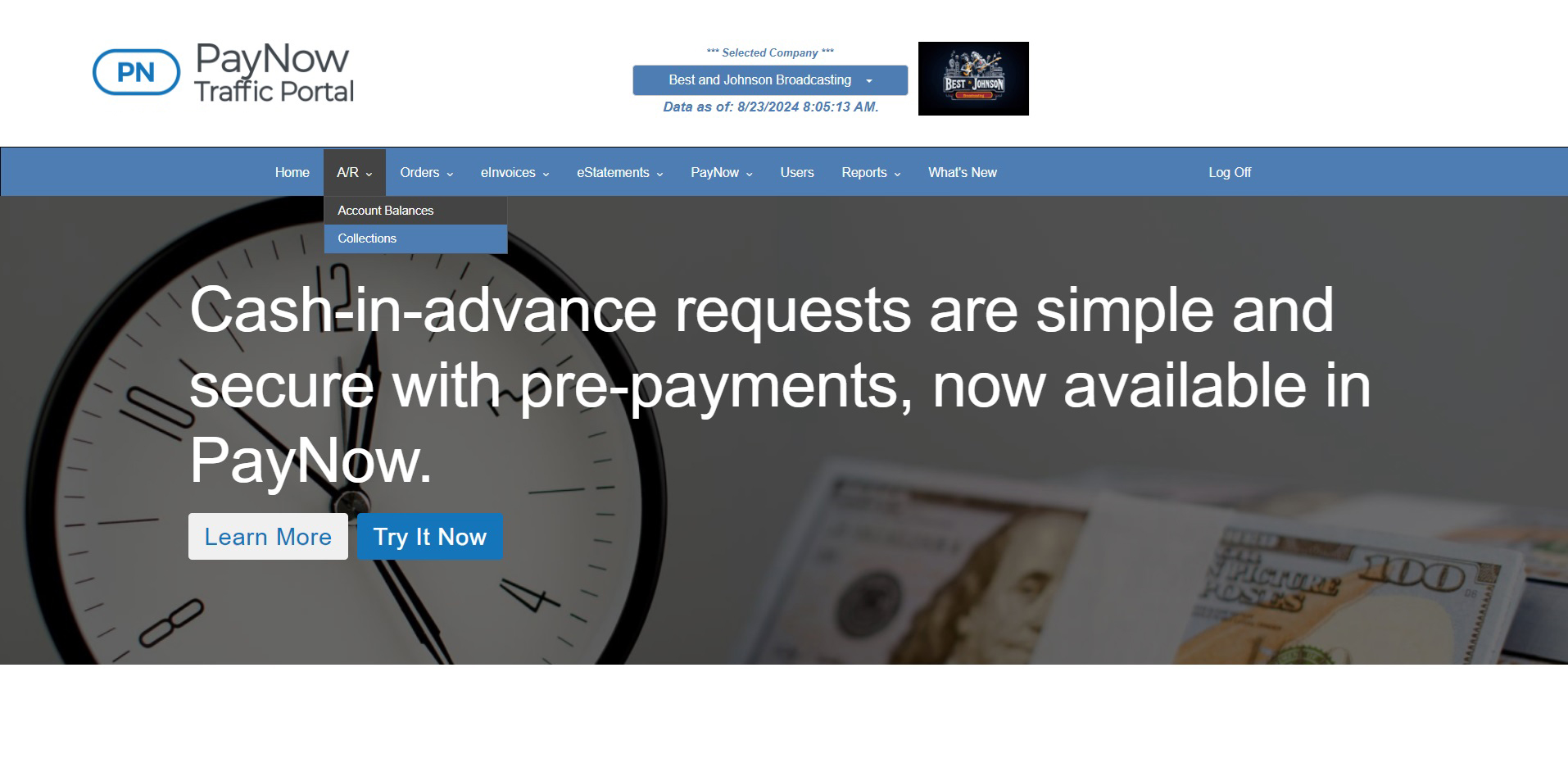
Open the collections tool
- 1Access the collections tool under the A/R menu.
- 2Traffic Portal admins can give users access by granting permissions to A/R in the Users menu.
Screen 2 of 6
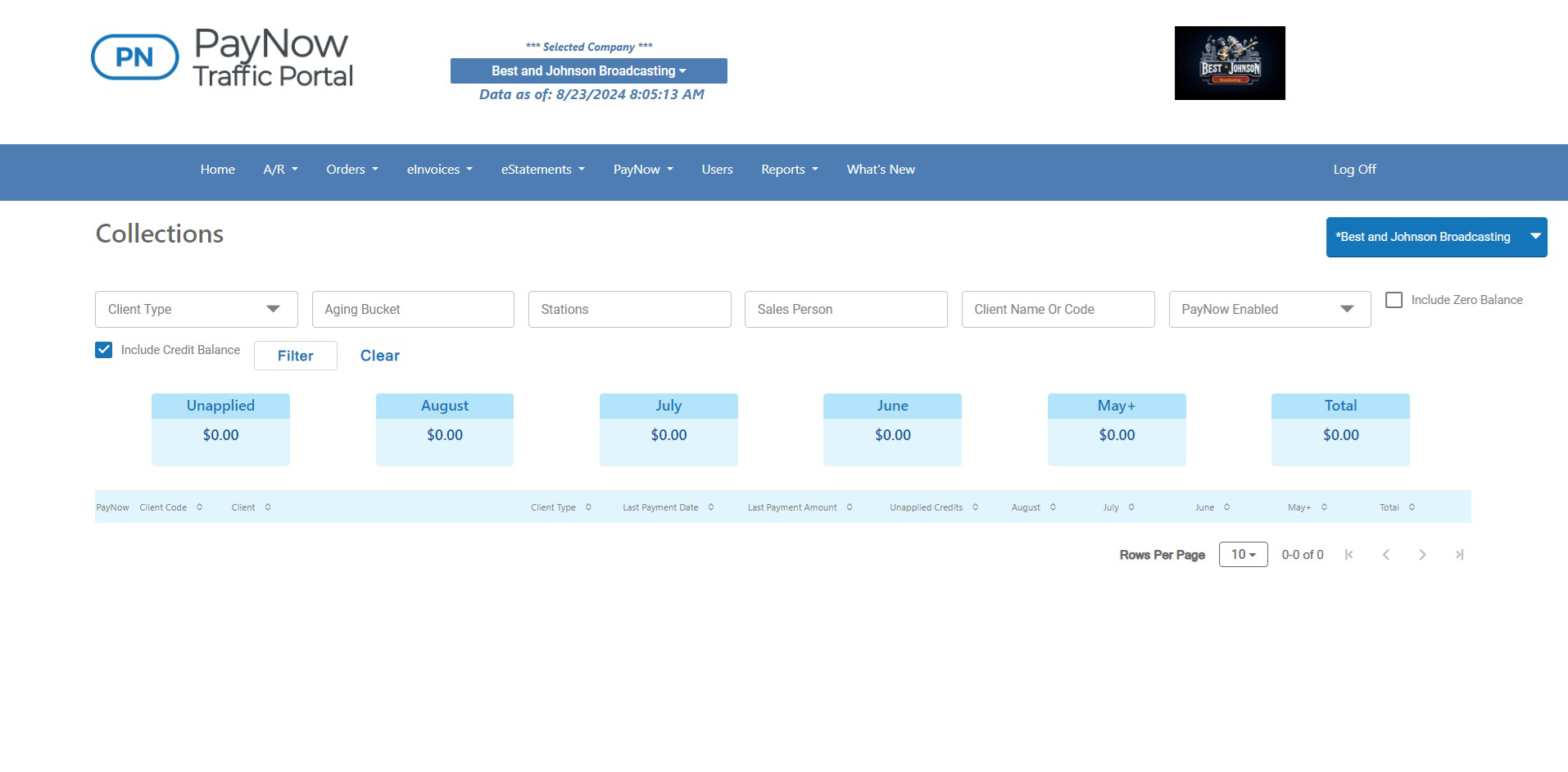
See balances at a glance
- 3See all your clients’ balances and aging data at a glance.
- 4Switch between PayNow payment accounts if your company has more than one.
- 5Filter by client type, aging bucket, stations and more.
- 6Click “Filter” to run the report.
Screen 3 of 6
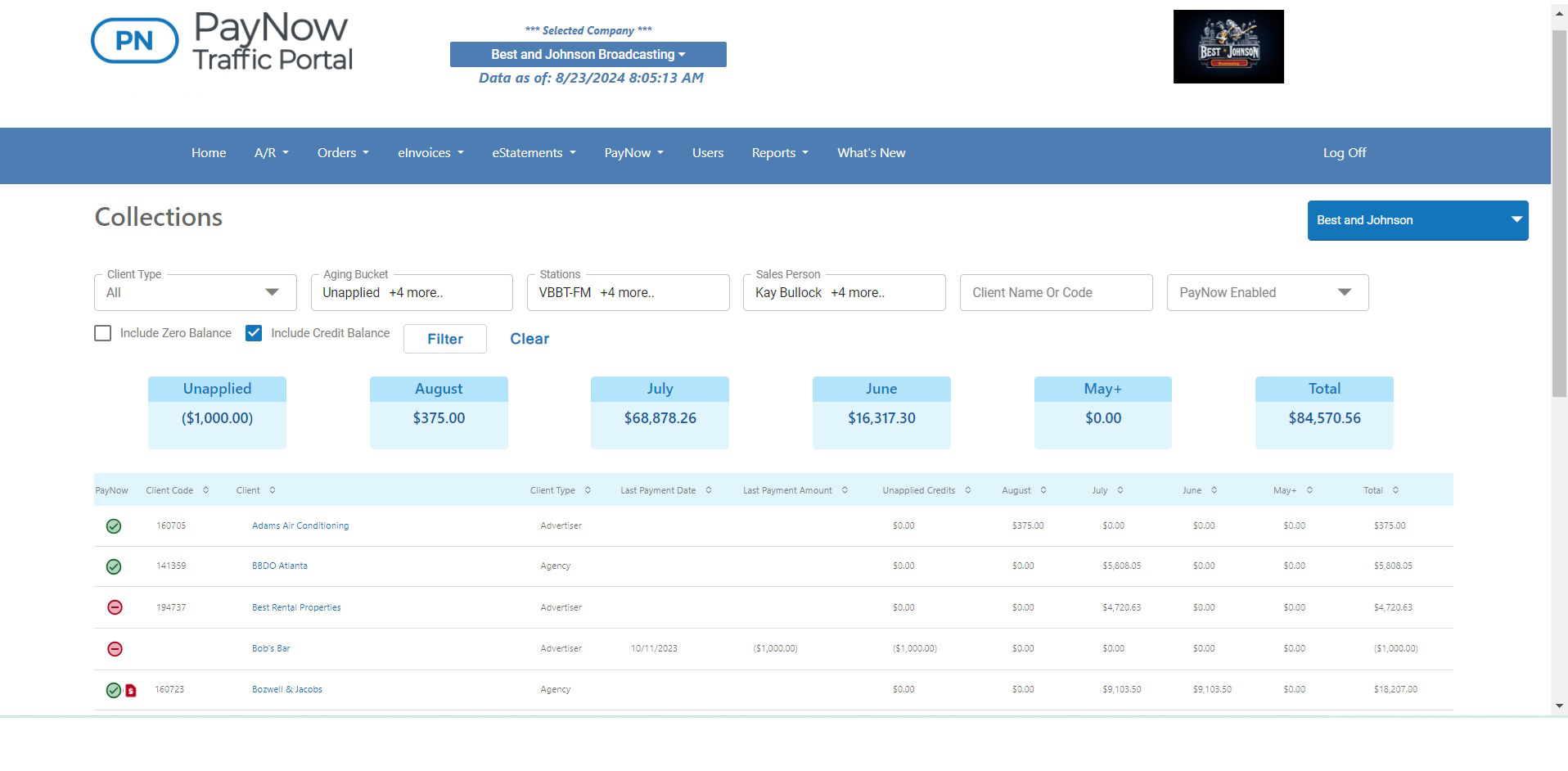
Read the aging report
- 7See total amounts of all outstanding invoices in aging buckets, including unapplied credits.
- 8A green icon means the client is activated for PayNow and can pay past-due accounts electronically.
- 9If the advertiser or agency has an Advertising Portal account, their EI code is shown.
- 10Payments, credits or pre-payments not yet applied show in the Unapplied Credits column.
- 11Aging columns show how old balances are relative to the current month, previous month and older.
- 12With Marketron Traffic or Visual Traffic, the tool is restricted by salesperson and/or station based on traffic system security settings. A red icon next to the PayNow column means the client isn’t activated for PayNow.
- 13Click a client’s name to see details about their outstanding balances.
Screen 4 of 6
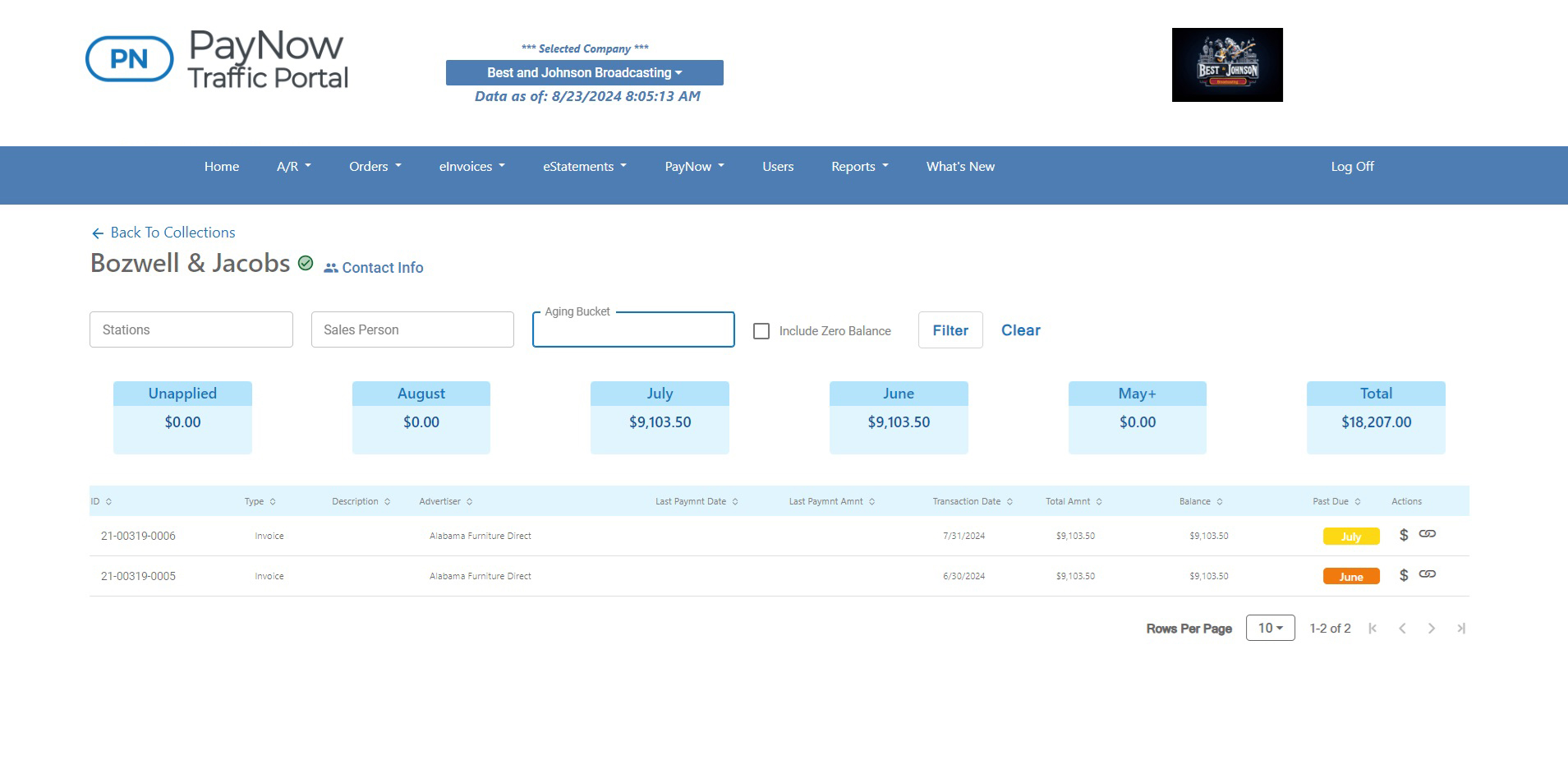
Drill into a client
- 14Filter the client detail page by station, salesperson and aging bucket, including zero-balance transactions if needed.
- 15Each outstanding transaction shows the month it was originally due.
- 16With PayNow, click the dollar icon to process a payment on behalf of the client.
- 17With PayNow, click the link icon to copy a guest checkout link to send to the client.
Screen 5 of 6
Contact the client
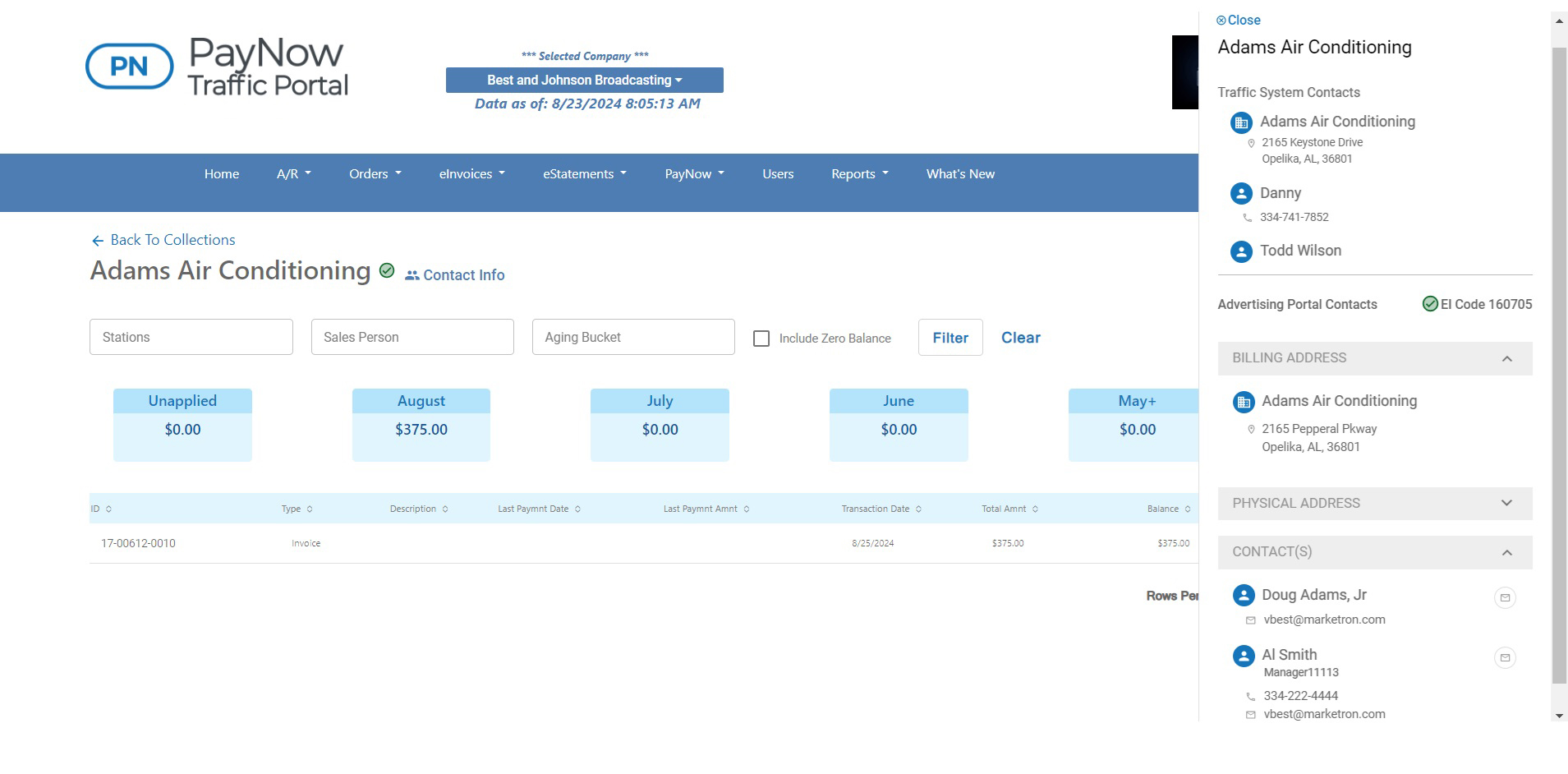
- 18Open a panel to see the client’s contact information.
- 19The top of the panel shows the client’s name and their contacts in the traffic system.
- 20The bottom of the panel shows contact information from the client’s Advertising Portal account.
- 21Launch an email to a contact to send a payment request and guest checkout link if needed.
Screen 6 of 6
Invite clients to the Advertising Portal
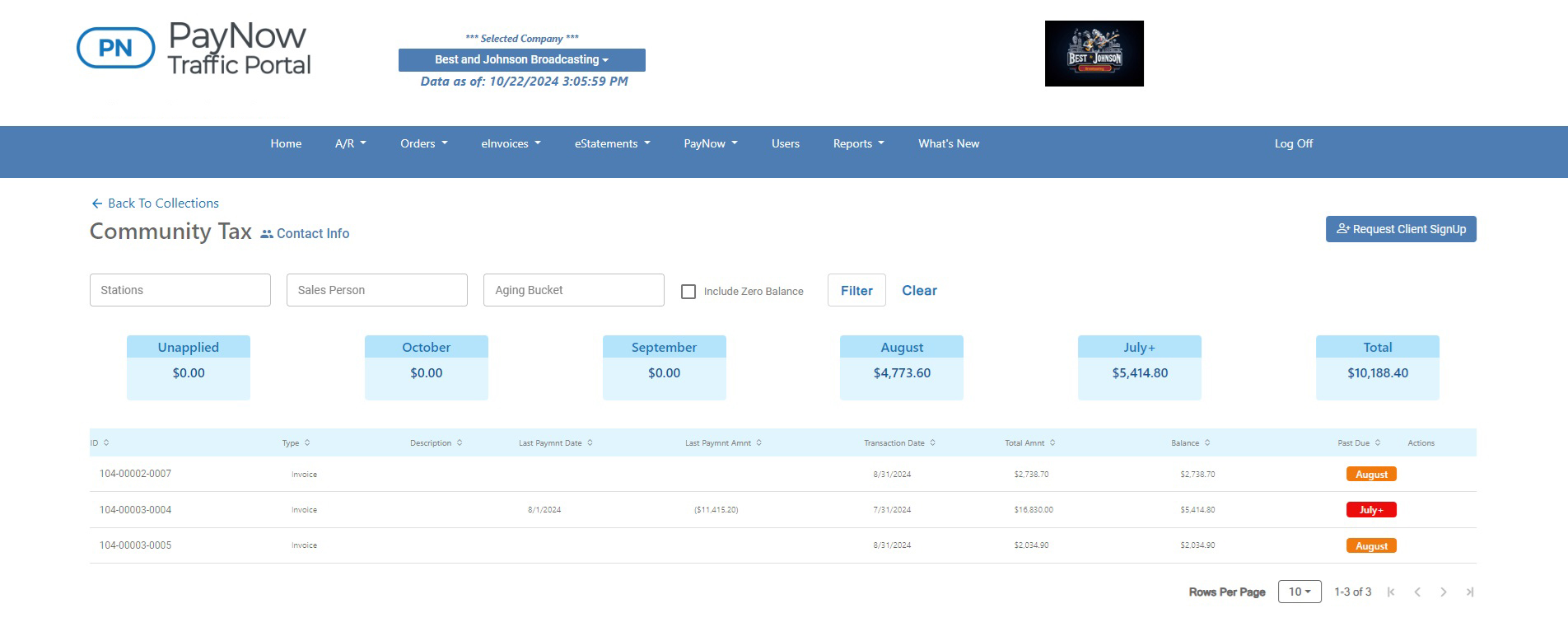
- 22If the client doesn’t have an Advertising Portal account, the client detail page offers an option to send them a request to create one.